|
<< Click to Display Table of Contents >> Formatting the Score |
  
|
|
<< Click to Display Table of Contents >> Formatting the Score |
|
After selecting the Part you want to review, Notation Player offers options listed below for formatting the score:
Collapsing multiple measure rests
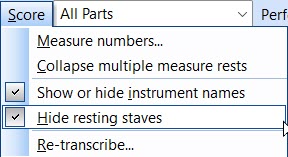
The above options serve the most common needs for reviewing scores quickly. For advanced formatting options, such as inserting page breaks and system breaks, or changing the font size of individual music symbols or text, you will need Notation Musician or Notation Composer.
A Notation (.not) file may have been carefully prepared by the author with special formatting. In this case, it is generally advised that you do not edit the Notation file, unless you have a good reason. Otherwise, the formatting prepared by the author will be disrupted. Notation Player does not offer the tools that Notation Musician or Notation Composer do for re-formatting the score.
A Notation (.not) file may include multiple instrumental or vocal parts for a small or large ensemble. You can select each part in Notation Player and see it, exactly as originally prepared by the Notation file author.